
Explore the workspace
Start with Overview for context, then use Versions, Tools or Settings for the task at hand. The workspace is the directory where you launched Cockpit.
Overview
See environment health, the active SDK, suggested actions and a support timeline in one place. Use the suggested links to investigate versions that need attention. Pre-flight Diagnostics, available from the command palette, checks the host, SDKs and workspace; its launch behavior can be changed in Settings.
Support dates and end-of-life labels come from Microsoft’s release catalog. If the catalog cannot be loaded, Cockpit reports unknown support status instead of estimating it.
Versions
Find the SDK or runtime you need with search, filters and sorting. Choose Inspect to see its details and version-specific installation directory.
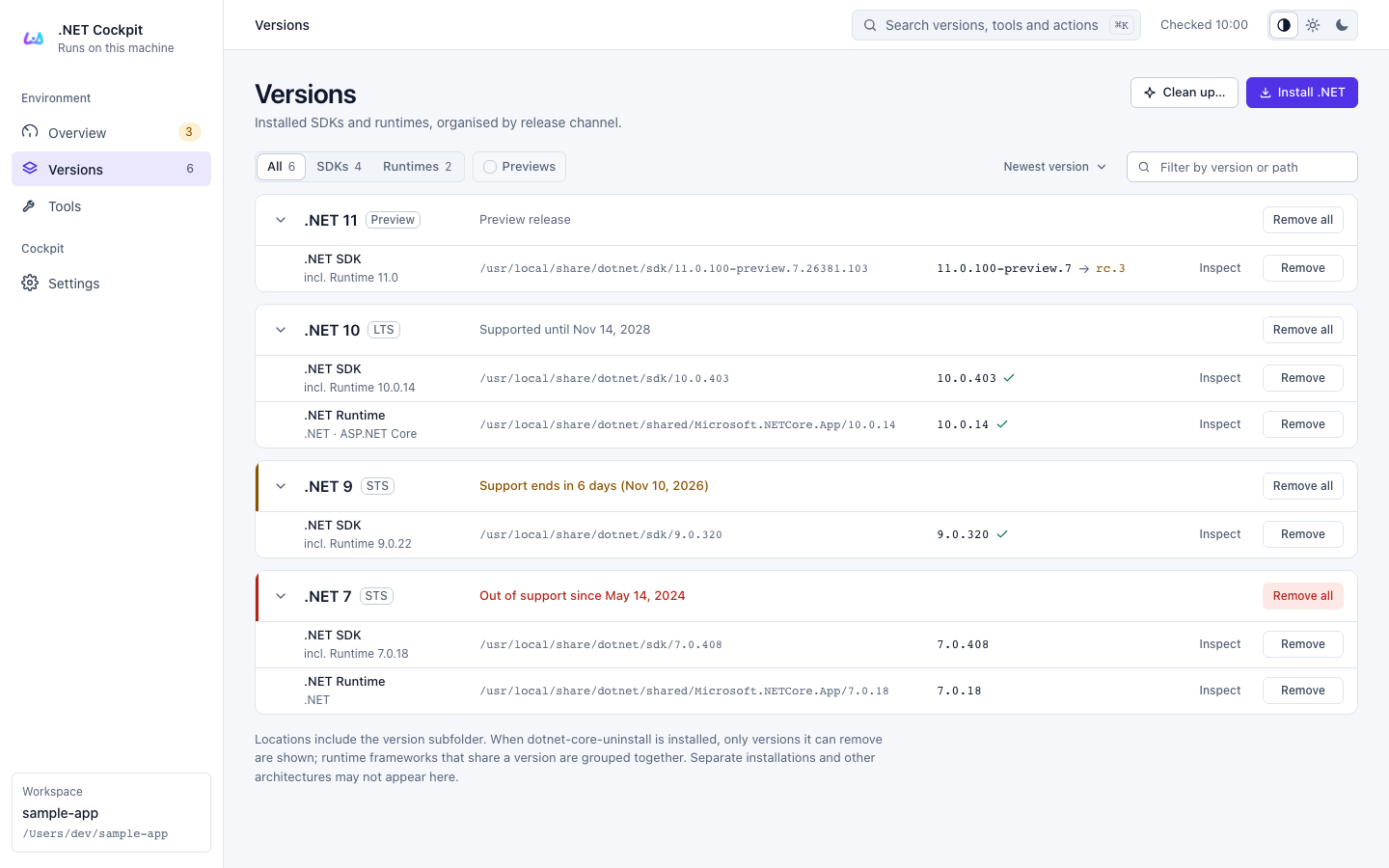
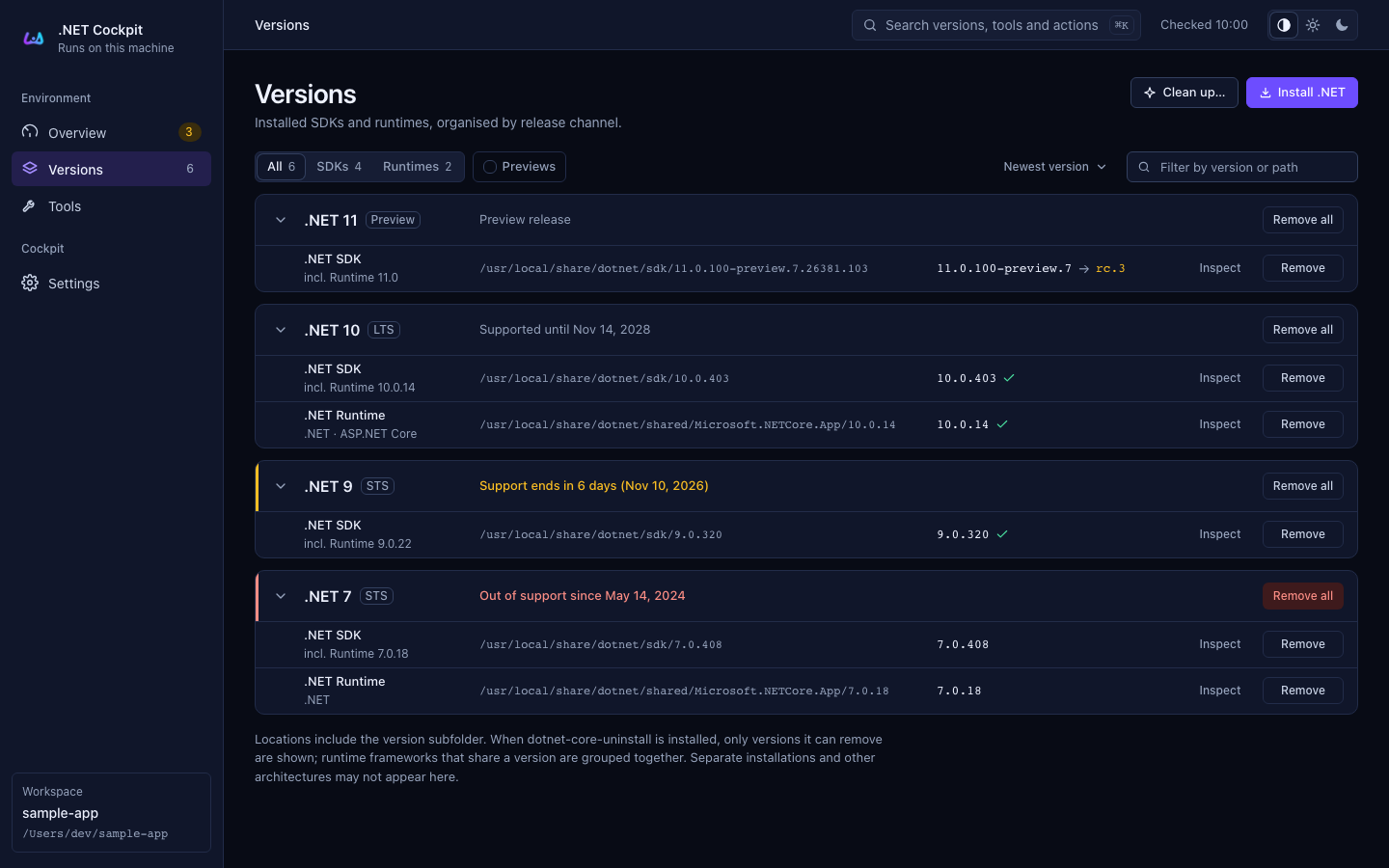
Demonstration inventory, including supported, preview and end-of-life versions.
Cockpit runs dotnet --list-sdks and dotnet --list-runtimes using the first absolute dotnet executable on its own PATH. A missing host and a failed query are reported separately. It does not scan the disk for other installations.
Install an SDK or runtime
- Open Versions → Install .NET.
- Choose an SDK for development, or a standalone .NET Runtime to run applications that need it.
- Download the official installer, then open it to complete installation.
| Platform | Installation route |
|---|---|
| macOS | Official .pkg for the host architecture |
| Windows | Official .exe for the host architecture |
| Linux | Link to Microsoft’s installation guide |
An SDK already includes its matching .NET Runtime and ASP.NET Core Runtime. The catalog also shows release channels, dates, SHA-512 checksums and release CVEs where Microsoft provides them.
Remove a version
Review the version and its path before choosing Remove. The confirmation shows the proposed action. Removal depends on the official uninstall tool and the installation’s eligibility; see Settings. Check that other applications do not need the version first.
Tools
Keep user-global tools and workspace-local declarations in view without confusing their scope.
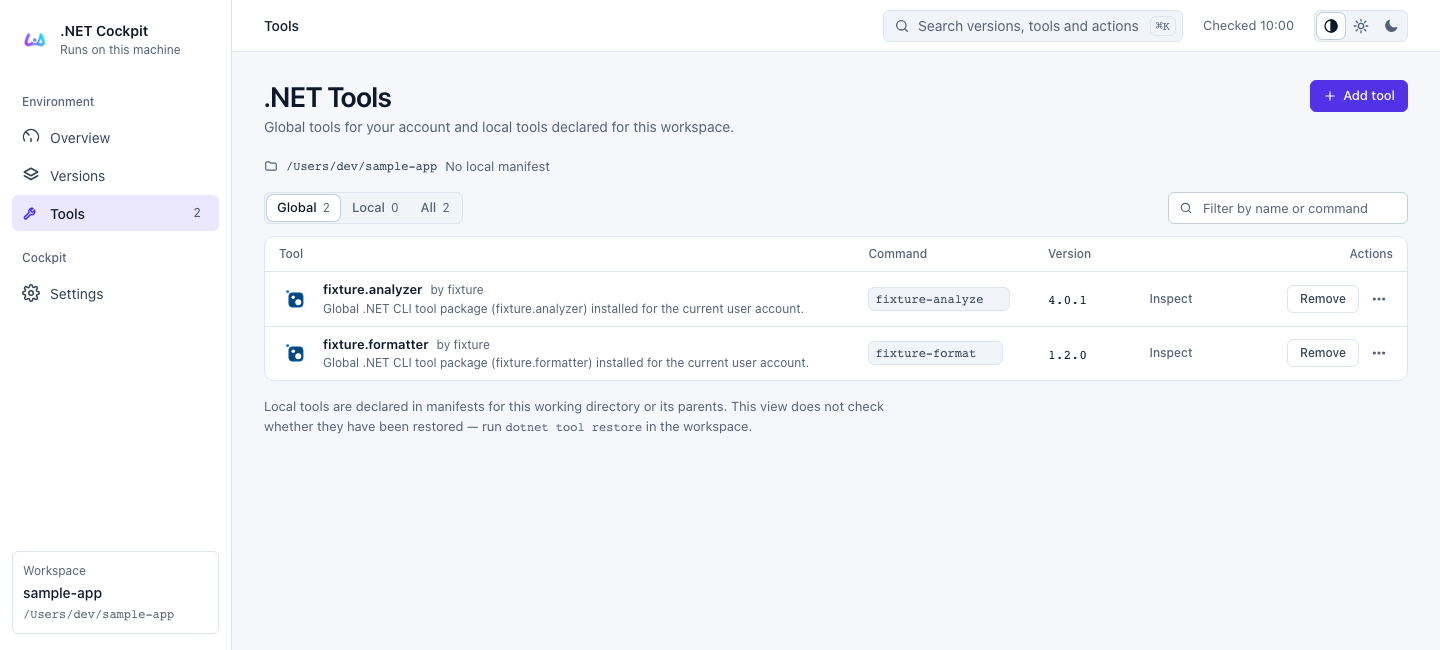
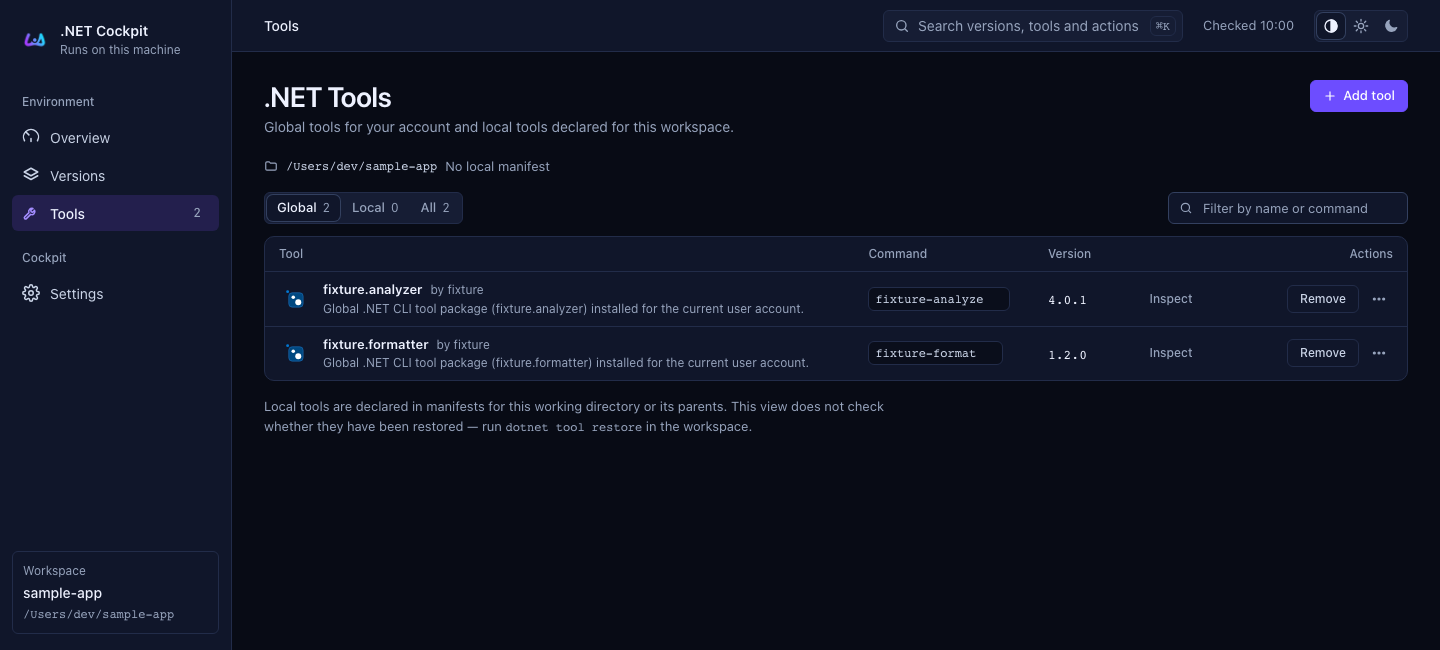
Example packages in a demonstration workspace with no local manifest.
| Scope | What you are seeing |
|---|---|
| Global | dotnet tool list --global for the current user |
| Local | dotnet tool list --local from Cockpit’s startup directory, including applicable parent manifests |
A local declaration does not mean its package has been restored. If one scope fails to load, the other remains independent.
Use Add tool to search NuGet.org. Results install globally until the current workspace has a local manifest; initialized workspaces offer global and local targets. Installed rows offer uninstall actions. Cockpit can remove a local manifest only when the startup directory owns it, never when it is inherited from a parent directory. Every change asks for confirmation.
Settings
Choose the Cockpit, macOS, GitHub or Codex palette, with light, dark or system appearance. The macOS palette also follows the system accent color on macOS. Preferences are stored locally and survive Cockpit’s changing port.
Removal support manages the official global dotnet-core-uninstall installation on macOS and Windows: detect, install, update or remove it, with administrator approval where required. The official uninstall tool does not support Linux.
Navigation and refresh
The sidebar switches between pages. With JavaScript enabled, the command palette searches versions, tools and actions. Normal GET forms and links keep inventory search, sorting and filtering available without JavaScript; confirmations use a dedicated page when the dialog is unavailable.
Pages show cached machine state and revalidate in the background. Use the refresh link after an external change. Restart Cockpit after changing its inherited PATH or installing a new dotnet host.